Updated June 2026 • Verified Q2 2026
What is POS hardware? POS hardware is the set of physical devices a business uses to ring up sales, take payments, track inventory, and capture sales data. That’s everything from the terminal your cashier taps to the card reader, the receipt printer, and the cash drawer underneath the counter. Together with the software, this point of sale equipment is what actually runs your front counter every day.
Whether you run a retail store, a restaurant, or anything in between, the right hardware setup makes the day smoother. The wrong setup slows down every transaction and frustrates your staff. From what I’ve seen over the years, the businesses that pick their hardware carefully spend less time fighting their own checkout and more time serving customers.
This guide walks through every piece of POS hardware, what each one does, what it typically costs, and how to choose, install, and maintain it.
How Much Does POS Hardware Cost?
Let’s start with the question most owners actually want answered: what’s this going to cost? Hardware prices move slowly and sit in fairly predictable ranges, so the table below gives you a realistic ballpark per component as of 2026. A complete single-register setup usually lands somewhere between $500 and $2,000 once you add it all up.
| Component | Typical Price Range |
|---|---|
| Card reader (mobile/tap-and-chip) | $39 to $100 |
| Barcode scanner | $70 to $300 |
| Receipt printer (thermal) | $130 to $400 |
| Cash drawer | $130 to $200 |
| POS terminal / register | $300 to $2,000+ |
| Customer-facing display | $100 to $300 |
| Complete single-register package | $500 to $2,000 |
These are typical ranges and vary by brand, features, and whether you buy new or refurbished. Worth knowing: a lot of payment providers will give you a free or heavily discounted card reader, and sometimes more, if you sign on for their processing. That can be a fair trade, just understand the processing commitment you’re agreeing to in exchange. For the full money picture, see our POS system cost guide.
Understanding the Key Components of POS Hardware
Every piece of POS hardware does a specific job, and knowing what each one is for helps you build a setup that fits your business instead of overpaying for gear you’ll never use. Let’s go through them.
POS Terminals/Registers
POS terminals, or registers, are the heart of the whole system. This is where you process transactions, check stock, and pull up customer information. If anything on this list is non-negotiable, it’s this.
There are a few main types, each suited to a different kind of business:
- Touchscreen terminals: The modern standard. A touchscreen display makes them quick to learn and clean to look at, and they usually come with a card reader and barcode scanner built in. Good fit for businesses that want a polished counter and an interface staff can pick up fast.
- Mobile POS terminals: Portable units that run on iOS or Android and pair with a phone or tablet, so you can take a payment anywhere in the building. These are ideal for pop-up shops, food trucks, or anywhere your staff sells away from a fixed counter.
- Traditional cash registers: The classic. Traditional cash registers handle the basics, totals, receipts, and secure cash storage, and they’re tough and cheap. For a small shop on a tight budget, they still get the job done.
Barcode Scanners

A barcode scanner reads the codes on your products so you can ring items up fast and keep inventory accurate. For any business with more than a handful of SKUs, it’s the difference between a quick checkout line and a slow one.
There are four common types:
Laser Scanners
Laser scanners read barcodes with a laser beam, and they’re fast and accurate. They’re a retail favorite for reading standard linear (1D) barcodes, and they can scan from a distance, which helps when you’re ringing up something big or heavy you’d rather not lift.
Imaging Scanners
Imaging scanners use a digital camera to capture and decode barcodes. They handle both 1D and 2D codes, including QR codes, which makes them the flexible choice.
If your business deals with several barcode formats, this is the one to get. They also read better in low light and can pull a code off a damaged or smudged label that would stump a laser scanner.
Handheld Scanners
Handheld scanners are portable and dead simple to use, which makes them a fit for just about any business. They can be laser or imaging, and your staff uses them to scan items at checkout or during stock counts. They come wired or wireless, so you can pick based on how much you move around.
Fixed-Mount Scanners
Fixed-mount scanners sit in one place, usually built into a checkout counter, and let your staff scan hands-free by passing items in front of them. You see these in supermarkets and anywhere with serious transaction volume, because they keep the line moving.
Types of Printers
Receipt printers give customers a paper copy of their transaction. There are three types, and which one you want depends on your environment.
Thermal Printers
Thermal printers are the most common type in retail and hospitality. They use heat to print on special thermal paper, so there’s no ink or toner to buy or replace.
Pros
- Speed: They’re fast, which matters when you’ve got a line and every second counts.
- Quiet operation: They run quietly, so they don’t add to the noise at the counter.
- Low maintenance: No ink, no toner, and fewer moving parts means less to go wrong.
Cons
- Special paper: Thermal paper costs more than regular receipt paper.
- Heat sensitivity: Thermal receipts fade over time, especially in heat or direct sun.
Impact Printers
Impact printers, also called dot matrix printers, use tiny pins striking an inked ribbon to print on regular paper. You’ll find them where duplicate copies matter, like a restaurant kitchen.
Pros
- Durability: They’re built tough and handle heat and dust that would bother other printers.
- Multi-part forms: They print duplicate and triplicate copies, handy when you need more than one.
- Longevity: The print lasts longer than thermal because heat doesn’t fade it.
Cons
- Noise: They’re loud, which can be a problem in a quiet space.
- Slower speed: They print slower than thermal, so they’re not ideal for a busy front counter.
- Higher maintenance: Ink ribbons need replacing and there are more moving parts to wear out.
Inkjet Printers
Inkjet printers aren’t as common at the counter, but they show up when a business wants high-quality color receipts or printed logos.
Pros
- High-quality print: Color output lets you add logos and promo messages to receipts.
- Versatility: They print on different paper types, including standard paper and labels.
Cons
- Ink costs: Cartridges need regular replacing, and that adds up.
- Maintenance: They need more cleaning and upkeep than a thermal printer.
- Speed: They’re slower than thermal, so they struggle in a high-traffic spot.
Cash Drawers

A cash drawer keeps your cash, coins, and receipts secure at the counter. Even with most payments going digital, you’ll still want one for cash sales and tips. They come in a few designs, each built for a different setup.
Manual Cash Drawers
Manual drawers open with a key or lever and have no electronic connection. They’re simple, secure, and reliable, which makes them a solid pick when you want to keep things basic.
Because they open by hand, they still work if the power goes out or the system goes down, which is a quiet advantage people don’t think about until they need it.
Electronic Cash Drawers
Electronic drawers connect to the POS system and pop open automatically when a cash sale goes through. Many add electronic locks the software controls, so the drawer only opens when the system says it should. That tightens security and cuts down on the chance of theft.
Flip-Top Cash Drawers
Flip-top drawers open from the top, with a lid that flips up to reveal the compartments. They’re built for tight spaces like a mobile setup or a small kiosk.
The compact design barely touches your counter space, and the top opening gives you quick access to cash and coins. Most come with durable materials and a lockable lid to keep cash secure.
USB Cash Drawers
USB drawers plug straight into the POS system through a USB port. It’s a simple, reliable connection that’s easy to set up.
The software triggers the drawer to open during a sale, and the USB link keeps that communication fast and secure. Just confirm your POS software supports the drawer before you buy, so the two play nicely together.
iPad/Tablet Cash Drawers
These drawers are made for tablet-based POS setups and connect wirelessly over Bluetooth or through a networked receipt printer.
You get the flexibility of a modern mobile setup without giving up the security of a real cash drawer. The tablet connection keeps checkout smooth, which is exactly what you want if your business runs on iPads.
Customer-Facing Displays

A customer-facing display is a screen pointed at the customer that shows the transaction as it happens: the items, the prices, and the running total.
That visibility builds trust. When customers can watch what’s being rung up and confirm the total before they pay, you get fewer errors and fewer disputes at the counter. It’s a small thing that smooths out the whole checkout.
When the display is idle, it can run promotions and special offers instead of sitting blank. That turns a passive screen into a little marketing tool, nudging impulse buys and giving you a spot to upsell.
Other POS Peripherals
Beyond the core gear, a few add-ons matter depending on what you sell:
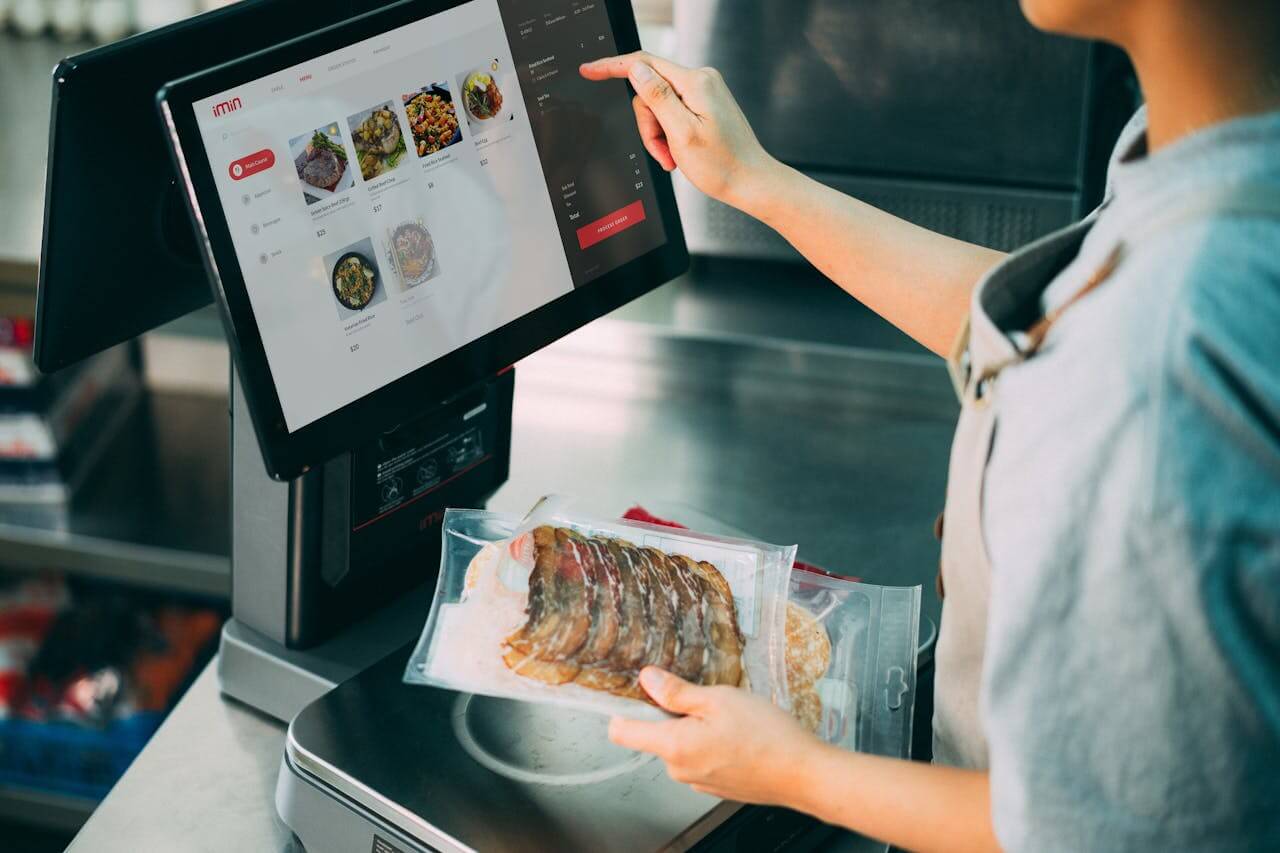
- Scales: For anyone selling by weight, like grocery stores, delis, or hardware stores. Modern scales tie into the POS software for fast, accurate weight-based pricing.
- PIN pads: For accepting debit and credit, these let customers enter a PIN or sign, which keeps you compliant with payment rules and protects card data.
- Other handy peripherals: Check readers if you still take checks, signature capture pads for electronic signatures, and kitchen printers for restaurants that fire orders back to the line.
What to Consider When Choosing POS Hardware
1. Business Type and Size
Your hardware needs follow your business type and size. A retail store wants solid barcode scanners and a customer display. A restaurant wants mobile POS units and kitchen printers.
Smaller businesses usually do fine with simpler, cheaper setups. Larger operations need more advanced, scalable systems that can handle higher volume and more complex day-to-day work.
| Business Type | Hardware That Matters Most |
|---|---|
| Retail store | Touchscreen terminal, barcode scanner, receipt printer, cash drawer, customer display |
| Full-service restaurant | Terminal, kitchen printer or KDS, mobile handhelds, receipt printer, cash drawer |
| Grocery or deli | Terminal, scanner scale, fixed-mount or handheld scanner, receipt printer, cash drawer |
| Cafe or quick-service | Terminal or tablet, card reader, receipt printer, cash drawer, customer display |
| Mobile / pop-up / food truck | Tablet or mobile POS, card reader, Bluetooth receipt printer, compact cash drawer |
2. Integrated or Stand-alone
Integrated systems bundle hardware and software into one package, which means a simpler setup and fewer compatibility headaches. If you want something that just works out of the box, this is the easier road.
Standalone components give you more flexibility and room to customize, but they take more effort to wire together with what you already have. Weigh the trade-off against your own comfort with tech before you decide.
3. Durability and Reliability
Reliable hardware keeps you open, and that’s the whole point. Quality gear stands up to heavy use and rough conditions, whether that’s the heat of a kitchen or the constant handling of a busy retail counter. Spend a little more here and you replace and repair less, which saves money down the road. Cheap hardware that dies in a year isn’t a bargain.
4. Compatibility and Scalability
Your hardware has to work with your software and any other systems you run. It also needs room to grow, so it can handle more transactions and new features as the business expands. Pick gear that scales with you and you won’t be ripping it all out the day you add a second register.
5. Cost and Budget
Balancing cost against what your business actually needs is the real trick. The cheapest option is tempting, but quality hardware pays you back through lower maintenance and fewer failures. From what I’ve seen, the bargain terminal that needs replacing twice ends up costing more than the good one would have.
Set your budget, then look for the gear that gives you the best value inside it without cutting corners on the parts you rely on every day.
6. Hardware Installation & Setup
Even great hardware underperforms if it’s set up wrong. Start by following the manufacturer’s instructions, and take cable management seriously. Tangled wires are a tripping hazard and a fast way to damage equipment.
Lay out your components for smooth workflow and easy access, for both your staff and your customers. When you place terminals, displays, and scanners, think about counter space, sight lines, and how comfortable they are to use all shift. Mount or secure everything on a stable surface so nothing shifts or falls during a busy day.
And if any of this feels over your head, ask for help. Plenty of hardware providers offer on-site installation or can point you to a certified technician who’ll get it right the first time.
7. Maintenance & Support
A little regular upkeep, cleaning, software updates, and checking for wear, prevents the kind of downtime that costs you sales. It’s easy to skip until something breaks at the worst possible moment.
On support, find a provider that actually answers when you call. A good support team helps with technical issues, troubleshooting, and hardware replacements when something fails. Look for on-site support, remote help, or loaner units to keep you running while a repair happens.
One more thing to ask about: warranties and service agreements. They protect your investment by covering repairs or replacements for a set period, and they buy you peace of mind.
Hardware Mistakes I See Businesses Make
After years of helping businesses set these systems up, the same handful of mistakes come up again and again. Here’s what to avoid, because every one of these costs real money or real downtime.
- Buying the cheapest terminal to save a few bucks. The bargain unit that fails in a year and takes your checkout down on a busy Saturday costs you far more than the good one would have. Buy quality on the piece you touch every transaction.
- Grabbing hardware before checking software compatibility. A scanner or printer that doesn’t talk to your POS software is just an expensive paperweight. Confirm compatibility first, every time, especially with third-party gear.
- Skipping the surge protector or UPS. It’s a small cost that nobody thinks about until a storm or a power blip kills a terminal. One fried unit pays for a lot of surge protection.
- Sizing hardware for today instead of next year. If you’re planning a second register or a second location, buy gear that scales now. Replacing your whole setup six months in is the expensive way to grow.
- Taking free hardware without reading the processing terms. Free equipment from a processor is only a deal if the processing rate is competitive. Plenty of businesses grab the free reader and pay it back many times over in higher fees.
POS Hardware Summary
The right POS hardware keeps your business running fast, accurate, and easy for customers to deal with. Get it right and you barely think about it. Get it wrong and you fight your own checkout every day.
From terminals and barcode scanners to receipt printers and cash drawers, each piece has a job in making transactions go smoothly. Customer displays add transparency and trust, while peripherals like scales and PIN pads cover specific needs. And don’t underestimate the boring stuff: solid installation, regular maintenance, and a support team that picks up the phone are what keep the whole setup working for years.
Need the right POS system for your business?
Frequently Asked Questions
What is POS hardware?
POS hardware is the physical equipment a business uses to process sales and payments. A complete setup typically includes a POS terminal or register, a card reader, a receipt printer, a cash drawer, and a barcode scanner. Depending on the business, it may also include a customer-facing display, kitchen printer, scale, or mobile handheld devices.
How much does POS hardware cost?
POS hardware costs range from about $50 for a basic card reader to over $2,000 for a full register setup. A complete single-register package usually runs $500 to $2,000. Individual pieces fall in predictable ranges: barcode scanners $70 to $300, thermal receipt printers $130 to $400, and cash drawers $130 to $200.
What hardware do I need for a POS system?
At minimum, you need a terminal or device to run the software and a card reader to take payments. Most businesses add a receipt printer and cash drawer. From there it depends on your type: retail stores add barcode scanners and customer displays, restaurants add kitchen printers and handhelds, and grocery stores add scanner scales.
Can I use my own tablet or iPad as POS hardware?
Yes. Many modern POS systems run on a standard iPad or Android tablet, which lowers your hardware cost since you may already own the device. You’ll still need compatible peripherals like a card reader, receipt printer, and a tablet-compatible cash drawer that connects over Bluetooth or through the printer.
Should I buy POS hardware or get it free from a payment processor?
Many payment processors offer free or discounted hardware in exchange for using their processing. This lowers your upfront cost, but you commit to their processing rates, which is where the real long-term cost lives. Free hardware is a good deal only if the processing terms are competitive, so compare the rate before you accept the gear.
What is the difference between a thermal and impact receipt printer?
Thermal printers use heat to print on special paper, run quietly, and need no ink, which makes them the standard at retail counters. Impact printers use an inked ribbon, are louder and slower, but print on multi-part forms and resist heat, which is why kitchens use them where a thermal receipt would fade.
Is POS hardware compatible across different POS software?
Not always. Some hardware works with many POS platforms, while other gear, especially proprietary terminals, only works with one system. Many third-party scanners and printers are compatible with mainstream software, but always confirm compatibility before buying, since mismatched devices can cause payment or inventory errors.
POS Hardware Glossary: Every Component at a Glance
Here’s the full list of POS equipment in one place for quick reference. You won’t need every item, just the ones that match how your business sells.
| POS Equipment | Description |
|---|---|
| POS Terminal | The central device where transactions are processed, often a touchscreen monitor. |
| Receipt Printer | Prints receipts for customers; thermal printers are commonly used for efficiency. |
| Cash Drawer | Secure storage for cash transactions, connected to the POS system for auto-opening. |
| Barcode Scanner | Scans product barcodes for fast and accurate item entry during checkout. |
| Card Reader | Processes debit and credit card payments, including contactless and chip cards. |
| Customer Display | Displays transaction details for customers during the checkout process. |
| POS Software | Manages sales, inventory, and reporting; installed on the terminal or cloud-based. |
| Kitchen Printer/KDS | Sends orders to the kitchen; either a traditional printer or a digital Kitchen Display System (KDS). |
| Network Router | Keeps a stable internet connection for cloud-based POS systems and card readers. |
| Mobile POS Devices | Handheld devices for tableside orders or payments, adding mobility and faster service. |
| Cashless Payment Devices | Supports modern payment methods like digital wallets (e.g., Apple Pay, Google Pay). |
| Label Printer | Prints product labels, barcodes, or pricing tags for inventory management. |
| Scanner Scale | Combines a barcode scanner and scale for weighing and scanning items at once, ideal for grocery stores. |
| Surge Protector/UPS | Protects the POS system from power surges and keeps it running during outages. |